Schedule, capacity and the shop floor
The schedule board shows every open lot by the work center it is waiting at. The shop floor terminal runs an operation from a scanned traveler barcode and records labor, the run and the counts without anyone touching a keyboard.
The schedule board
Schedule, under Production, draws one lane per work center in the order set on the work center and places each open job in the lane of its next operation. A ticket shows the job number and priority, customer code and part number, process code and quantity, the next operation with a Running badge once it has started, the due date, and a progress bar of operations done. Late lots are red, lots due by tomorrow are amber, and lots on hold are marked. Extra lanes appear when needed: At vendor, for operations out at an outside processor with the vendor and the expected return date; No work center; and Ready to ship. A filter box narrows the board to a job number, customer, part or process.
Capacity
Capacity, for office roles, turns the standard labor minutes on open operations into a backlog in hours per work center and divides by the work center's capacity in hours per day to give days of work. Each row shows the open operations, how many are already late, and a bar against the busiest center; more than three days of backlog is marked. Daily capacity is edited on the same page. Below is a load table for the next ten days: the hours due by each day per work center, with a cell turning red where they exceed the capacity available by then.
The shop floor terminal
Shop floor is made for a tablet or a PC with a barcode scanner at each line. The page is a scan box, a camera button, the time clock and a list of active labor. Scan the job barcode on the traveler and the terminal shows the job: customer, part, process and spec, quantity and thickness tolerance, then the next open operation. Scan an operation barcode (50008-30) and it opens that step instead. The operation panel shows the tank code and chemistry, the operating window, the target amps for the lot, the work instructions, the safety note, and any warning: tank out of service (which blocks the start), last analysis out of spec, analysis overdue, or the step started past its limit since the previous one.
- Start
- Opens a labor entry for the operator at their hourly rate (or the work center rate) and marks the operation running. An operator is on one clock at a time; starting a new operation closes the previous one.
- Stop
- Closes the operator's labor without completing the operation.
- Readings
- On a QC step: thickness readings and the gauge used. A QC step with a thickness spec cannot be completed without them.
- Complete
- Asks for rejected pieces, the reason code and notes, and, for a tank step with no run logged yet, the actual time, temperature, amps and volts. Out-of-window values are saved as a deviation. After the last operation the terminal says the job is ready to ship and clears for the next scan.
A job on hold shows "ON HOLD. Do not process." in place of the buttons. Outside-processing steps point the operator to the job page, where the office sends the lot out and receives it back. The Active labor card lists who is on which job and operation right now.
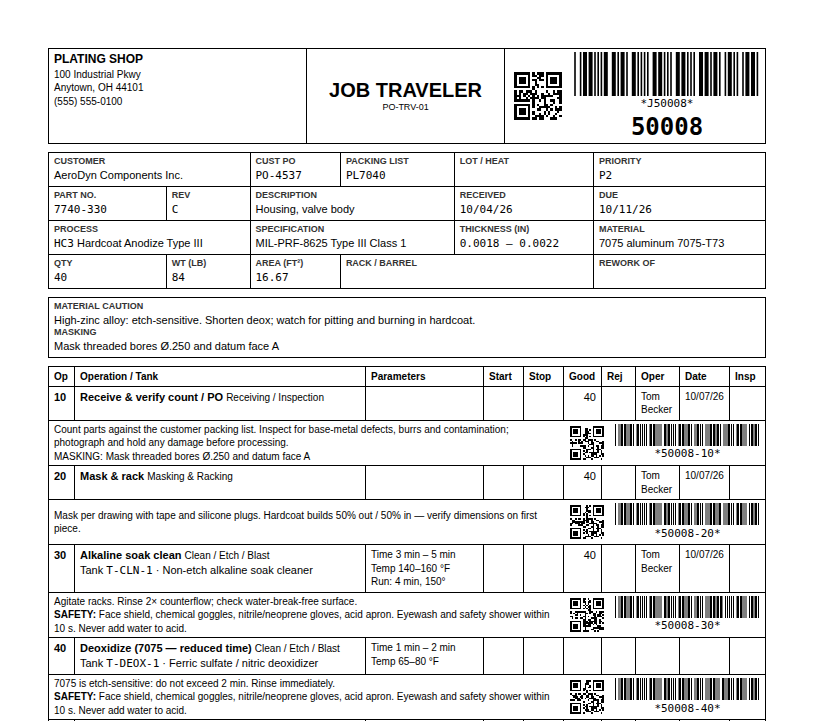
Barcode scanning
USB and Bluetooth scanners work in keyboard mode with an Enter suffix, and you do not have to click into a field first: the app recognizes the burst of keystrokes anywhere on the page. On the Shop floor and Time clock pages the scan goes into the terminal or the badge kiosk; elsewhere it opens the record. Phones and tablets use the camera instead, from the button in the top bar and on the terminal, reading the QR and Code 39 codes on travelers, tank sheets, packing slips and labels. Browsers only allow the camera on HTTPS, so a self-hosted server also listens on port 3443 with its own certificate; Setup > Barcode Scanning shows a QR code for that address, a scan tester and printable labels.
| Scanned | Opens |
|---|---|
| J50008 or 50008 | The job, at its next open operation |
| 50008-30 | Operation 30 of job 50008 |
| A tank code | The tank page |
| An inventory SKU | The chemical or item |
| A shipment, PO or cert number | That document |
| An equipment ID | The gauge, rectifier or oven |
Labor and job cost
Every Start is a labor entry with the operator, the operation, the start time and the rate. Stop or Complete closes it and computes minutes and cost; a hold or a cancel closes any open labor on the lot. The job's costing card rolls the entries up by operation against the standard minutes and adds the work center's overhead.
Racks
Racks, under Production, keeps the fixtures: rack ID, type (rack, barrel, basket, fixture, wire or jig), capacity in pieces, a dedicated process, condition, the last recoat or strip date, a recoat interval and the next recoat due. A part's pieces per rack computes racks used when a job is received, and the rack and count print on the traveler.
Two jobs on one rack: loads
When lots from different jobs or customers go into the tank together, build a load on the terminal instead of starting each job on its own. Scan the first traveler and press Add to a load; scan the next and press Add to load. The load panel on the right lists the jobs with their pieces and the share of the run each one carries. The piece count is editable: a rack can take part of a job, and the rest stays with the job for a later load; the operation stays open until the last pieces have been through, and the job page shows how many have run. Shares are by plated area when every part has one and by pieces otherwise. Jobs that run in a different tank are refused. Jobs whose time, temperature or current-density windows differ, or more pieces than the rack holds, are allowed with a warning, because one of them will record a deviation.
Start load puts every operation into running and splits the operator's clock across the jobs by share. Complete load takes one run for the whole rack (time, temperature, amps, volts) and a reject count per job. The amp-hours post to the tank once and the tank's event log shows one cycle with every job number; each job's own run record carries its share of the amp-hours and its tank time, so job costing stays right. Counts, rejects, QC readings and completion stay per job. Production > Loads lists every load with its jobs, pieces, amp-hours and result, and the job page marks an operation that ran in a load with its load number.