Team, notifications, messages and security
Each person has one of six roles and the server checks it on every request, not just in the menu. Notifications tell people what needs them, messages let them talk about a job without leaving it, and Settings > Security shows every device and every sign-in on the account.
Roles
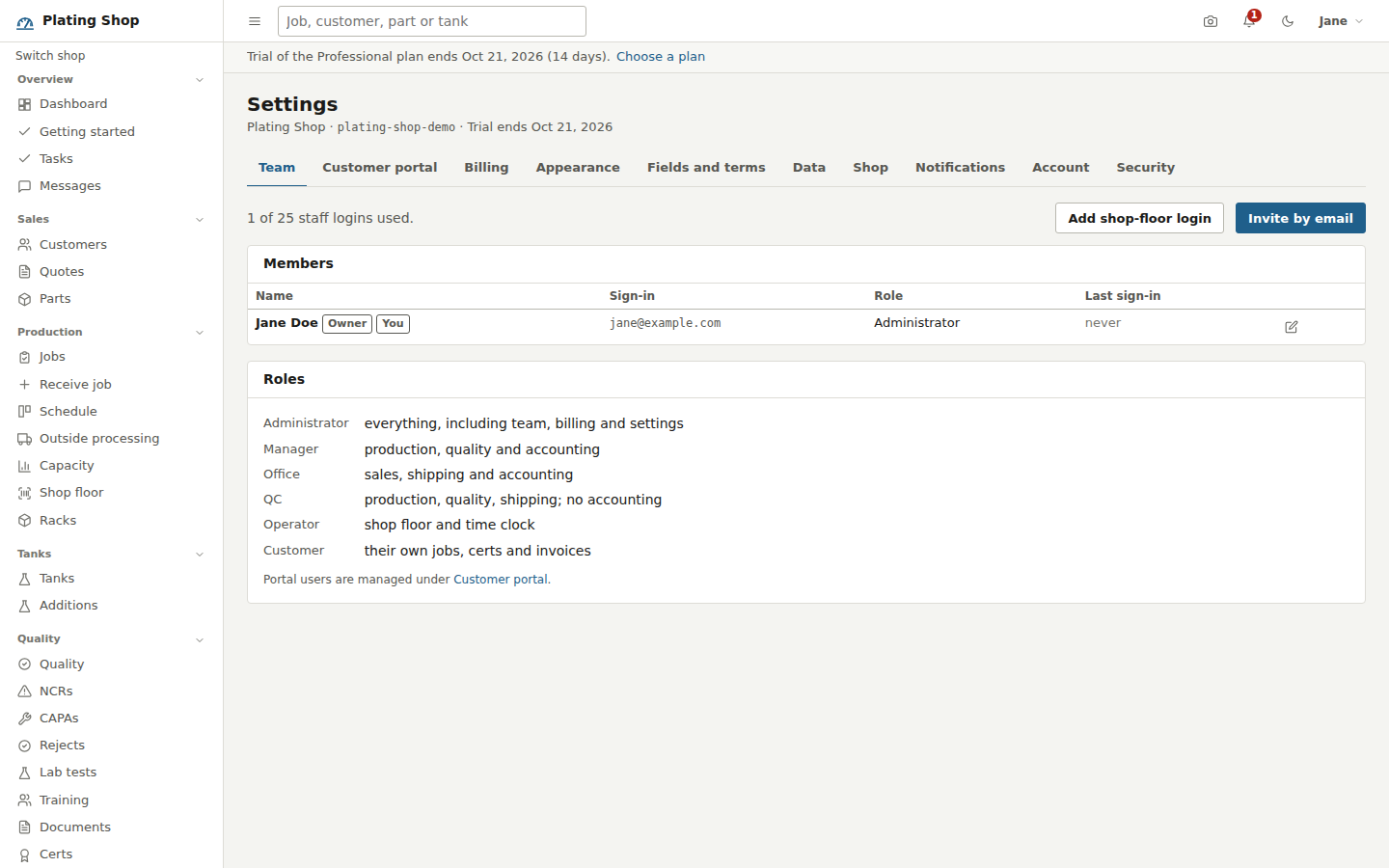
| Role | Can do |
|---|---|
| Administrator | Everything, including team, billing, appearance, fields, data and settings. |
| Manager | Production, quality and accounting. Team and billing too. |
| Office | Sales, shipping and accounting: quotes, receiving jobs, shipping, invoices, bills, the ledger and reports. |
| QC | Production, quality and shipping. Receives jobs, signs off inspections and certs. No receivables, payables or ledger. |
| Operator | Shop floor and time clock: scan, log runs, complete steps, post tank additions, issue stock. |
| Customer portal | Their own jobs, certs, shipments, invoices and quotes, and nothing else. See Customer portal. |
The sidebar hides what a role cannot use, and the API refuses it anyway. Receivables, Bills, Vendor payments, Finance and Reports are for administrators, managers and office staff. Receive job, Capacity, Ship, the PM schedule and Processes are for those three plus QC.
Adding people
Settings > Team shows how many staff logins the plan allows and how many are used, the members with their sign-in, role and last sign-in, pending invitations, and the role list. Invite by email takes an address and a role; the link is valid 7 days and an invitation can be cancelled before it is accepted. Add shop-floor login is for operators without email: a name, username and password, and they sign in with the shop ID, the username and the password. Either way a person gets a badge or clock number for the time clock and scanner, an hourly rate for labor costing, and a job title. Administrators can reset a password. Removing a member ends their access to the shop at once; their labor and sign-off history stays on the jobs.
The shop-floor terminal and the time clock kiosk run under one login, and customer-portal users are free, so the staff count is the people who sign in from the office and the line. The shop owner can transfer ownership to another administrator or delete the shop under Settings > Shop.
Notifications
The bell in the top bar shows the unread count and opens the latest notifications. The Notifications page lists all of them, and each one can be opened, marked read or unread, or deleted, singly or all at once. Notifications are written when something needs a particular person:
- An NCR is assigned to you as owner, or a task is assigned to you.
- A work order is assigned to you, a PM you are assigned comes due, a work order you requested is finished, or an urgent work order is opened (administrators and managers).
- A wastewater sample is out of permit limits (administrators, managers and QC).
- A customer requests a quote through the portal (administrators, managers and office staff).
- Someone writes to you in Messages.
Messages
Messages is built-in messaging between the staff of one shop. A direct conversation is the one thread between two people, reused each time either writes to the other; a group has a title and any number of members. The sidebar shows the unread count. A message can link a record so "look at this" lands on the right page: a job, tank, customer, part, quote, NCR, CAPA, work order, piece of equipment, shipment, invoice or PO. You get one notification per conversation until you open it. Customer-portal users do not take part.
Your account and its security
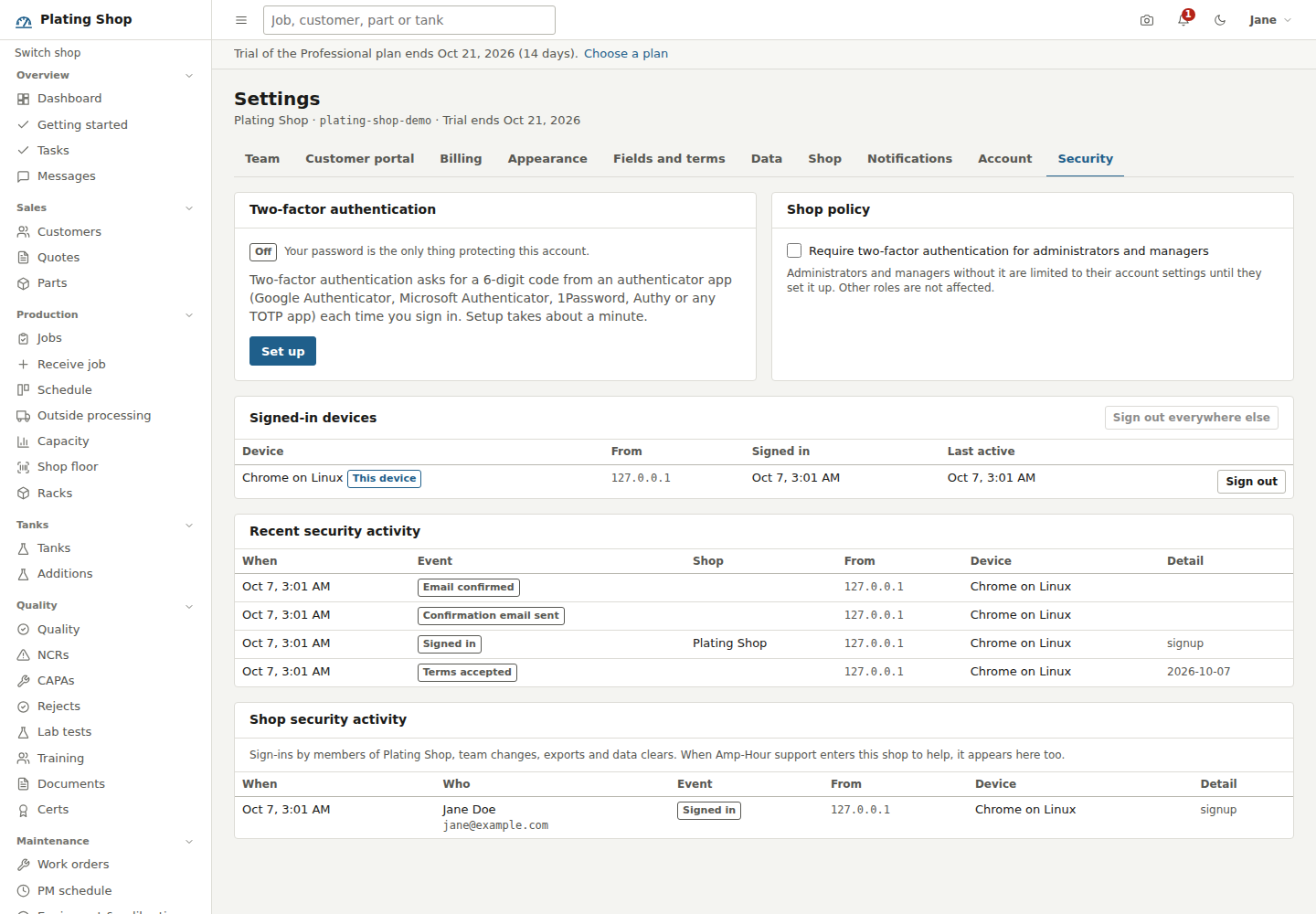
Settings > Account changes your name and password and shows if your email is confirmed. Settings > Security has four cards.
- Two-factor authentication
- Set up scans a QR code into any authenticator app and confirms with a six-digit code. Ten recovery codes are shown once, with copy and print. New recovery codes replaces the set. Turning it off takes your password and a current code, and signs out your other devices.
- Shop policy
- An administrator can require two-factor authentication for administrators and managers. Until an affected person sets it up, they can reach only their account and security settings.
- Signed-in devices
- Every open session with browser, address, sign-in time and last activity. Sign out any one of them or everywhere else.
- Security activity
- Your sign-ins, failures and lockouts, password and two-factor changes, devices signed out, exports and invitations. Administrators and managers also see the shop's activity: sign-ins by members, team changes, exports, backup downloads, data clears and every time Amp-Hour support entered the shop.
What the server does on its own
Passwords are at least 12 characters, checked against common passwords and your own name and email, and stored with scrypt. A session ends after 7 days idle and 14 days in any case. Ten failed sign-ins lock the login for 15 minutes, and a sign-in from a new browser and address sends you an email. Every change to a record is in the shop's audit log under Shop setup. Once a day the server snapshots every shop database, keeps 30 days and copies them off-site; an administrator can download the shop's whole database, a JSON export of every table or any table as CSV from Settings > Data at any time, and each download is written to the security log. The Security page covers the rest.
Reporting a problem
Report a problem, in the name menu at the top right, opens a short form: what happened and what you expected. The report goes to us by email with the page you were on, your shop and role, your browser and the last few errors the page recorded, so you do not have to describe them; we answer to the address on your account. A page that fails to load offers the same link. Reports are kept in our console until they are closed.