Certs, shipping and packaging
Shipping closes the job. One screen takes the completed jobs for a customer, records the shipment, prints the packing slip and carton labels, issues the certificate of compliance and, if you want, raises the invoice.
Ship completed jobs
Open Shipping > Ship. The Ship Jobs page lists every job in Complete status, with a tab per customer and a count on each tab. The table shows job, part number, process, customer PO, quantity ordered, shipped so far and rejected, then three cells you can edit per line: Ship qty, Cartons and Weight (lb).
- Ship qty starts at the good count from the last completed operation, capped at what is still owed (ordered minus shipped minus rejected). Pieces dispositioned to scrap or rework are left out; rework pieces ship on their own rework job.
- Cartons is proposed from the part's Pieces per Carton / Bag and recalculates as you change the quantity.
- Weight is prorated from the part weight on file.
Below the lines you enter Ship date, Carrier (a pick list of common carriers, or type your own), Tracking / PRO and Notes. The button is Ship and print packing slip. Untick a line to leave that job for a later shipment.
A job that ships short stays Complete with the shipped quantity recorded, so it shows up again on the next Ship Jobs visit. When shipped quantity reaches ordered minus rejected, the job moves to Shipped. Shipping needs an Office, QC, Manager or Administrator login; "Create the invoice now" is shown to Office, Manager and Administrator.
Shipments
Shipping > Shipments lists each shipment with customer, ship date, carrier, tracking, pieces, invoice number (or a "not invoiced" badge) and status. A shipment page shows the contents, carrier, tracking, ship-to address, who shipped it, notes and the certificates issued with it. From here you print the packing slip or carton labels, open or create the invoice, and void the shipment.
Void returns the shipped quantities to the jobs, sets them back to Complete and removes the certs issued for that shipment. A shipment that has been invoiced cannot be voided until the invoice is voided first.
Packing slip and carton labels
The packing slip (form PO-PKS-01) prints with the shipment number as a Code 39 barcode and a QR code, ship date, carrier, tracking, carton count, gross weight, terms from the customer record, sold-to and ship-to blocks, and a line per job: our job, customer PO, part number and revision, description with lot number, finish and specification, quantity and cartons. Packing instructions and notes print under the lines, and the slip ends with sign-off cells. The ship-to address is the customer's Ship-To Address, or the billing address when that is blank.
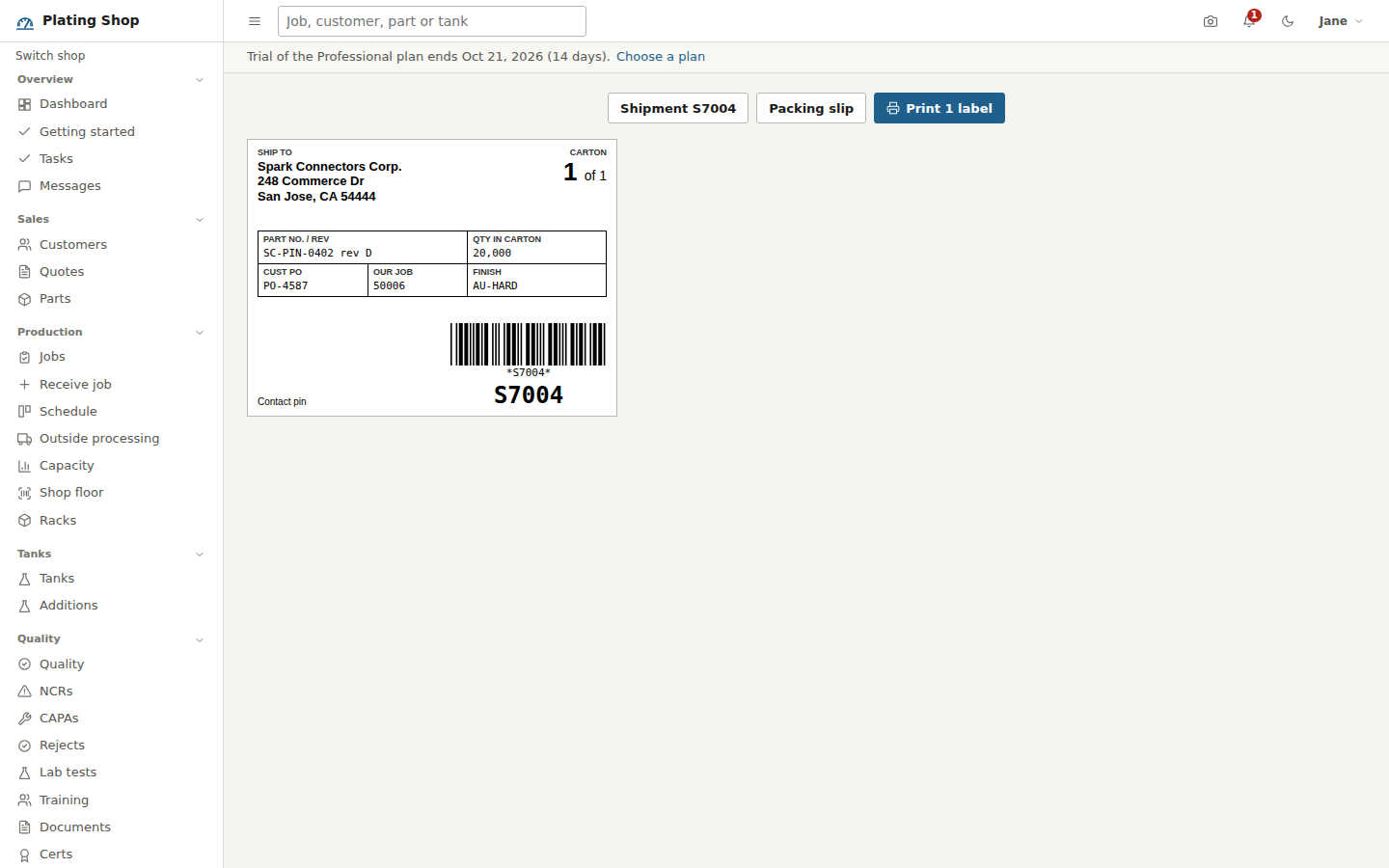
Carton labels print one per carton at 4 by 3 inches: ship-to, carton n of N, part number and revision, quantity in this carton, customer PO, our job, finish code, description, lot number and the shipment barcode.
Packaging spec on the part
Packaging lives on the part record.
- Pieces per Carton / Bag
- Sets the carton count that Ship Jobs proposes and the label quantities.
- Packaging Type
- Carton, bag, bag in carton, tray, tote, skid, customer container or bulk.
- Packing Instructions
- Free text, for example layer counts, VCI paper, no staples, label format. It prints in the Packing block of the traveler with the carton count for the full lot, on the job page and on the packing slip. Blank uses the customer's Default Packing Instructions.
Certificate of compliance
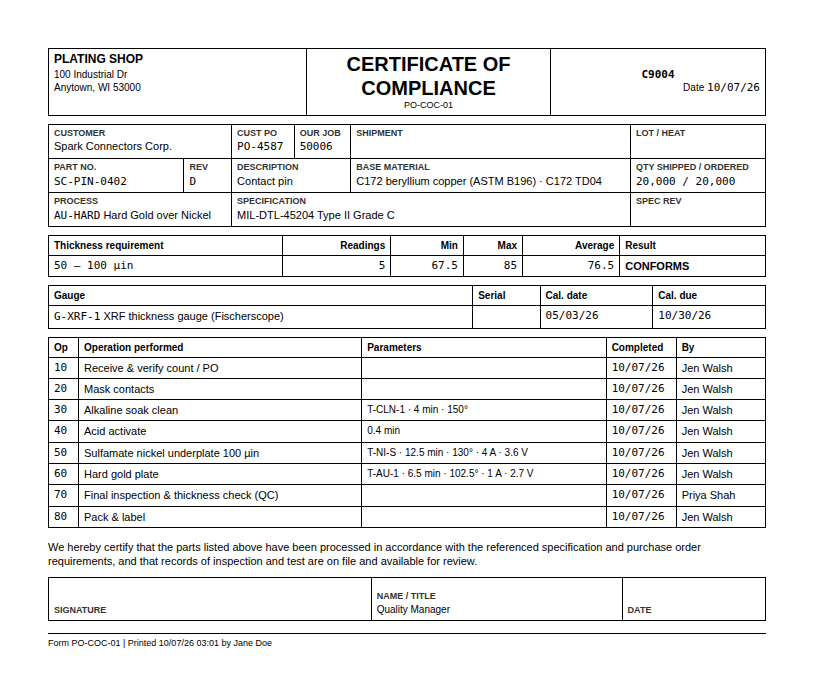
When a customer has Cert of Compliance Required ticked, shipping issues a cert per job on the shipment. The cert is a snapshot taken at that moment, so a later edit to the part or process does not change a cert already issued. The document (form PO-COC-01) states:
- Customer, customer PO, our job number, shipment number, lot or heat number.
- Part number, revision, description, base material, quantity shipped and ordered.
- Process code and name, and the specification on the process.
- The thickness requirement with the count, minimum, maximum and average of the readings on the job, and a result of CONFORMS, NONCONFORMING or NOT MEASURED.
- Each gauge the readings were taken with, its serial number, last calibration and calibration due date.
- The operations performed, with the tank, time, temperature, amps and volts logged on each run, the completion date and the operator.
- The certification statement, from Shop Setup > Company settings or the Cert Statement Override on the process, a note when the parts were stripped and refinished under a rework job, and a signature block with the signer name and title from settings.
Quality > Certs lists every cert with job, customer, part number, customer PO, quantity, shipment and issue date, and opens each one for printing. On a job in Complete or Shipped status the Issue cert button issues a fresh copy, for a customer who asks for one with updated readings. Cert numbers come from Document numbering in Company settings.
What the customer gets
If Email When Jobs Ship is on for the customer, the customer's contacts get an email per job with the shipment number, carrier and tracking, and a link to the shipment in the customer portal. Portal users see the shipment, print the packing slip and open their certificates under Certificates.