Maintenance
Maintenance tracks what is broken, what is down and what is due. Anyone can report a problem against a piece of equipment or a tank; the work order carries the downtime, the labor and the parts, and PM templates raise their own work orders when the interval comes round.
Report a problem
Maintenance > Work orders has a Report a problem button, and the same form is on every equipment page and tank page under Maintenance history. It asks for one line on what is wrong, the Equipment or the Tank, a type (repair, PM, inspection, safety, improvement), a priority (low, normal, high, urgent), who to assign it to, a Needed by date and details. The last checkbox, "The asset is down now", marks the equipment or tank out of service and starts the downtime clock as the order is created.
Any login can report a problem. An urgent order gets a due date of today and a notification to every manager and administrator; a high priority order is due in two days. Assigning the order notifies the person it went to.
Work orders
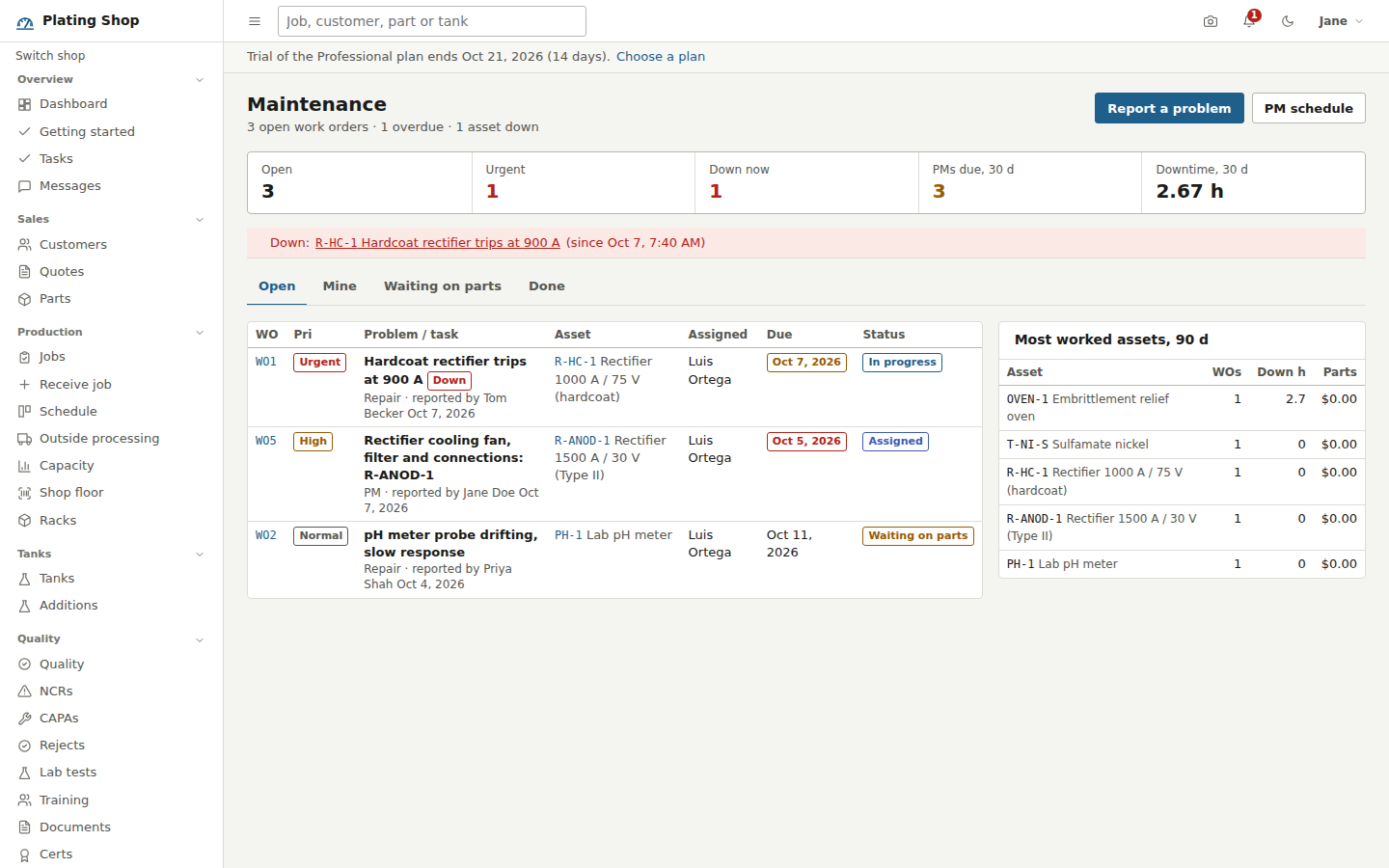
The Maintenance page opens with a strip of counts: Open, Urgent, Down now, PMs due in 30 days and Downtime hours in the last 30 days. If anything is down, a red banner names the asset and the order, with the time it went down. Tabs split the list into Open, Mine (assigned to or reported by you), Waiting on parts and Done. Each row shows the WO number, priority, the problem with its type, reporter and date, the asset, who it is assigned to, due date and status. A side card lists the most worked assets over 90 days with the number of orders, downtime hours and parts cost.
| Status | Meaning |
|---|---|
| Open | Reported, nobody assigned. |
| Assigned | Someone is named on it. Set when a person is assigned. |
| In progress | Start work was pressed; the start time is recorded. |
| Waiting on parts | Set by hand from Edit. |
| Done | Completed with a resolution. |
| Cancelled | Stays in the history as cancelled. |
Work the order
The work order page shows the problem and details, assignment, Needed by, the PM template it came from, start and completion times, the resolution, labor minutes and downtime. Buttons along the top:
- Start work
- Sets In progress and assigns the order to you if nobody else is on it.
- Mark down / Back in service
- Runs the downtime clock. Down sets the equipment or tank status to out of service; back in service returns it and adds the elapsed minutes to the order. An out-of-service tank blocks operators from starting a run in it.
- Issue parts
- Issues a stock item and quantity from Inventory to the order at weighted-average cost; the parts and their cost are listed on the order.
- Edit
- Title, type, priority, assignment, due date, status, labor minutes so far, details and the checklist.
- Complete
- Asks what was done and the labor minutes. A repair needs a resolution. Completing while the asset is down ends the downtime and puts it back in service.
- Cancel
- Office roles only. An order with parts issued cannot be deleted, only cancelled.
A checklist is one item per line. Ticks save as you go, so a technician can work through it over a shift. Completing a PM with unticked items is refused unless you tick "Complete anyway", in which case the skipped items are noted in the resolution. The reporter is notified when the order is done.
Every completed order on a piece of equipment writes an entry to that equipment's Calibration and analysis log, and a completed PM sets the equipment's Last Maintained and Next Maintenance Due from its maintenance interval.
PM schedule
Maintenance > PM schedule holds the PM templates. A template names the task (rectifier cooling fan and filter, anode basket inspection, heater and thermostat check), the Equipment or Tank, Every (days), Next Due, estimated minutes, who to assign it to, a checklist and notes.
When a template's next due date arrives, opening Maintenance creates a work order of type PM from it, titled with the task and the asset code, carrying the checklist with every item unticked, assigned to the named person (who is notified) and due on the template date. A template that is already overdue creates its order at high priority. Only one open order exists per template at a time. Completing the order moves Next Due forward by the interval.
Equipment and tank pages show the PM schedule for that asset, its work order history and downtime over 90 days. Equipment & calibration is the companion list, with calibration and maintenance due dates per gauge, rectifier and oven; it is covered under Quality.
Where it surfaces
Urgent and overdue work orders and anything down are on the Dashboard under Outside processing and maintenance. Notifications for assignments, urgent orders, PMs due and completed orders go to the bell in the top bar and the Notifications page. The module can be switched off under Settings if your shop does not use it.